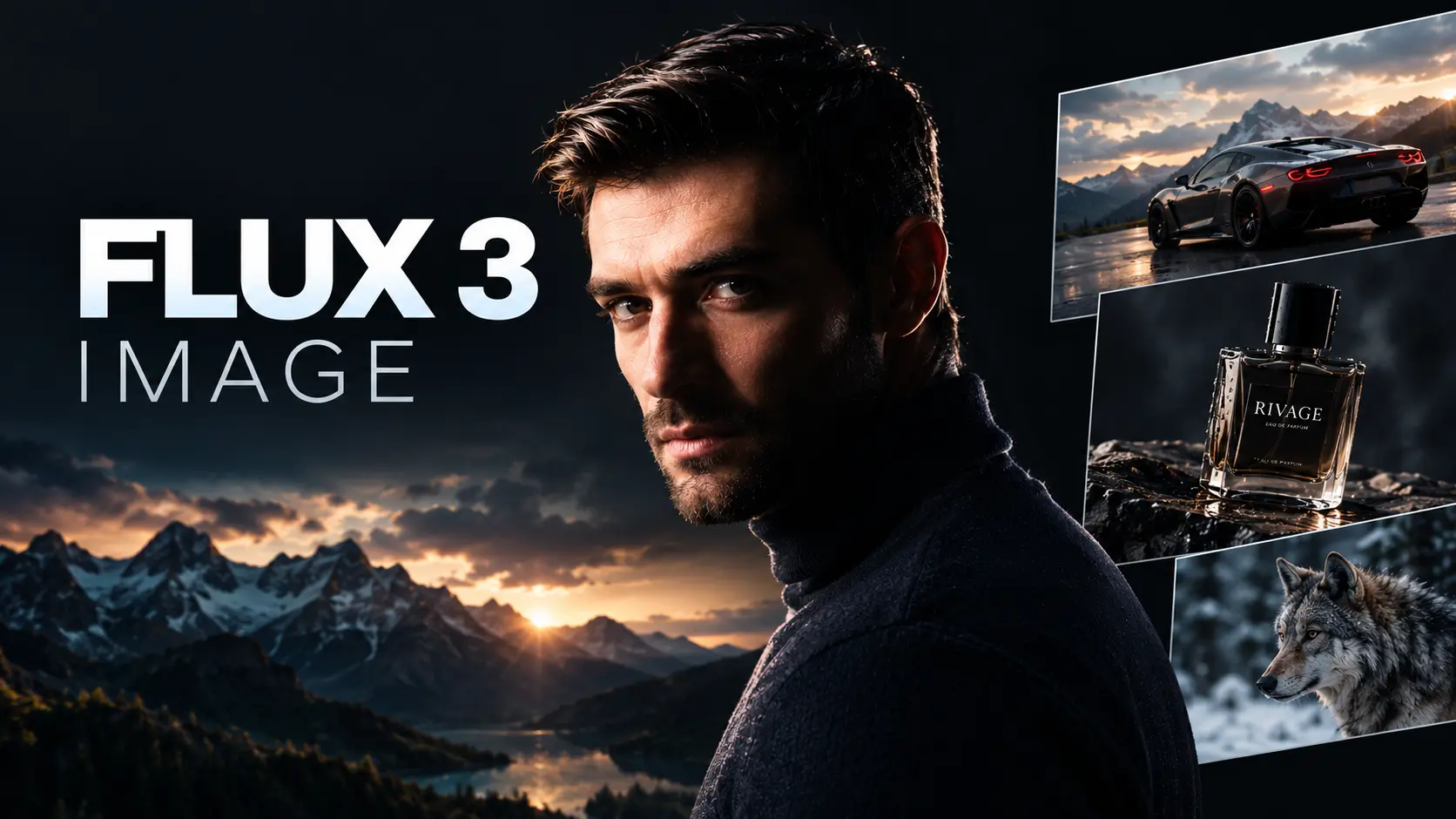
FLUX 3 Image vs. GPT Image 2.5: Which AI Image Generator Is Better?
 Ole N. Mai
FLUX 3 Image is our top pick if you want precise composition control, high-resolution images, and more control over your results.
Choosing an AI image generator can be frustrating. One model creates great images but struggles with text. Another follows your prompt well but changes details you wanted to keep.
Two models worth comparing are FLUX 3 Image by Black Forest Labs and GPT Image 2.5 by OpenAI.
Both can create detailed images and edit existing ones. But they have different strengths. FLUX 3 Image offers more control over image layout, reference images, and local edits. GPT Image 2.5 focuses on image quality and following instructions.
So, which one should you use?
Let's compare their features, look at real-world use cases, and see how you can test FLUX 3 Image on APImage.
FLUX 3 Image vs. GPT Image 2.5: Quick Comparison
Feature | FLUX 3 Image | GPT Image 2.5 |
|---|---|---|
Developer | Black Forest Labs | OpenAI |
Image quality | High-resolution image generation | Detailed images with realistic lighting and textures |
Reference images | Up to 10 | Supports reference images |
Resolution | Native 2K and 4K options | Depends on the model and settings |
Image editing | Targeted edits that preserve other areas | Edits based on natural-language instructions |
Layout control | Bounding boxes for precise placement | Prompt-based composition |
Best use cases | Product images, complex layouts, reference-based designs | General image creation, editing, and visual content |
Both models can produce excellent results. The better choice depends on what you want to create.
What Is FLUX 3 Image?
FLUX 3 Image is an AI image model from Black Forest Labs, the company behind the FLUX family of models.
It lets you create images from text prompts and edit existing images. What makes it interesting is the level of control it offers.
Here are three features worth knowing about.
1. More control over image layout
Have you ever generated a thumbnail where the person ended up in the wrong place? Or created a product image with no room for text?
FLUX 3 Image offers bounding-box controls. These let you define where certain elements should appear in the image.
For example, you could create a YouTube thumbnail with a person on the right, a product in the center, and empty space on the left for a headline.
This gives you more control over the final layout instead of relying only on a text prompt.

2. Use up to 10 reference images
Sometimes, describing what you want isn't enough.
You might have a product photo, a reference for the lighting, and another image showing the style you're after.
FLUX 3 Image supports up to 10 reference images. You can use them to guide the result and get closer to your intended design.
This is useful for product photography, marketing campaigns, and branded content where details need to stay consistent.
3. Generate images in 2K and 4K
FLUX 3 Image supports native 2K and 4K image generation.
Higher resolution can be useful for product images, large graphics, and detailed designs. It also gives you more room to crop an image without losing as much detail.
Of course, resolution isn't everything. A sharp image is still useless if the product looks wrong or the composition doesn't match your needs.
4. Edit parts of an image
Imagine you've created the perfect product photo, but you don't like the background.
With FLUX 3 Image, you can make targeted edits without intentionally changing the entire image.
This can help when you need to replace an object, adjust part of a scene, or create several versions of the same advertisement.
It's especially useful when you want to keep most of an image exactly as it is.
FLUX 3 Image vs. GPT Image 2.5: Which Is Better for Different Tasks?
The best model depends on what you're trying to do. Here are some common examples.
Product photography
Both models are worth testing for product images.
FLUX 3 Image is interesting if you need several reference images or want to control the placement of objects.
GPT Image 2.5 is a good option for generating realistic scenes and refining images through instructions.
Try generating the same product photo with both models. Check whether the shape, color, materials, and small details match the original product.
YouTube thumbnails
Thumbnails need more than a good-looking image. The subject must be easy to see, the composition must be clear, and there needs to be enough room for the title.
FLUX 3 Image's layout controls can help you place the main subject where you want it.
GPT Image 2.5 is worth testing when you want to generate a complete scene with detailed instructions.
For the best comparison, use the same thumbnail concept in both models and see which result needs less editing.
Marketing images
If you create ads or social media content, you may need several versions of the same image.
For example, you might want the same product in a studio, on a desk, and in an outdoor setting.
Both models can help you create these variations. FLUX 3 Image offers multiple reference images, while GPT Image 2.5 focuses on preserving subjects and following editing instructions.
Test how well each model keeps the important details consistent across your images.
Editing existing images
If you only want to change one part of an image, FLUX 3 Image's targeted editing is worth trying.
If you prefer to make changes by describing them in plain language, GPT Image 2.5 is another strong option.
Try changing the background, lighting, or one object while keeping everything else the same. The model that makes fewer unwanted changes may be the better choice for your workflow.
How to Test Both Models on APImage
You don't need to guess which model is better. You can compare them using your own prompts.
APImage gives you access to AI image and video tools in one place. You can explore different models and choose the ones that work best for your projects.
Here's a simple way to compare FLUX 3 Image and GPT Image 2.5.
Step 1: Use the same prompt.
Start with a simple task, such as creating a product photo or YouTube thumbnail. Keep the prompt as similar as possible for both models.
Step 2: Compare the results.
Look at the lighting, details, composition, and how closely each image follows your instructions.
Step 3: Try editing the images.
Ask both models to change one thing, such as the background, without changing the main subject.
Step 4: Choose the image that works best.
Don't judge the models based on one result alone. Try a few different prompts and see which one gives you the best results with the least editing.
What else can you do with APImage?
APImage isn't limited to still images. Depending on the tools you use, you can also:
Create product photos and marketing graphics.
Generate YouTube thumbnails and social media content.
Work with reference images and edit existing visuals.
Explore AI video generation and lip-sync tools.
Connect supported creative tools through the APImage API and MCP integration.
You can explore the available models and features on APImage.
Frequently Asked Questions
Is FLUX 3 Image better than GPT Image 2.5?
Neither model is better at everything. FLUX 3 Image offers precise layout controls, support for up to 10 reference images, native 2K and 4K generation, and targeted editing. GPT Image 2.5 focuses on image quality and instruction-based editing. Test both with your own prompts to find the better fit.
Can FLUX 3 Image generate 4K images?
Yes. FLUX 3 Image supports native 2K and 4K image generation. Available output options may depend on the platform and settings.
How many reference images can FLUX 3 Image use?
FLUX 3 Image supports up to 10 reference images. These can help guide the look and content of a generated image.
What is the difference between GPT Image 2.5 Flare and Sunburst?
Flare focuses on speed and general image-generation tasks. Sunburst is designed for more demanding creative work where quality and editing control are important.
Can I use FLUX 3 Image for commercial projects?
That depends on the model's license and the terms of the platform you use. Check the applicable terms before using generated images in commercial work.
Where can I try FLUX 3 Image?
You can try it on APImage. The platform also provides access to other AI image and video tools, so you can explore different options in one place.
Final Verdict
FLUX 3 Image and GPT Image 2.5 are both worth trying, but for different reasons.
FLUX 3 Image stands out for its layout controls, reference images, high-resolution output, and targeted editing.
GPT Image 2.5 is worth considering if you want realistic images and a straightforward way to refine them through instructions.
The easiest way to decide is to test both on something you actually need to create.
Try FLUX 3 Image on APImage and see how it handles your next image.

Written by
Ole N. Mai
Founder of APImage
Use Flux 3 Image to generate studio-quality images in seconds.
Create Premium Images
Use Flux 3 Image to generate studio-quality images in seconds.
Create Premium Images
 Ole N. Mai