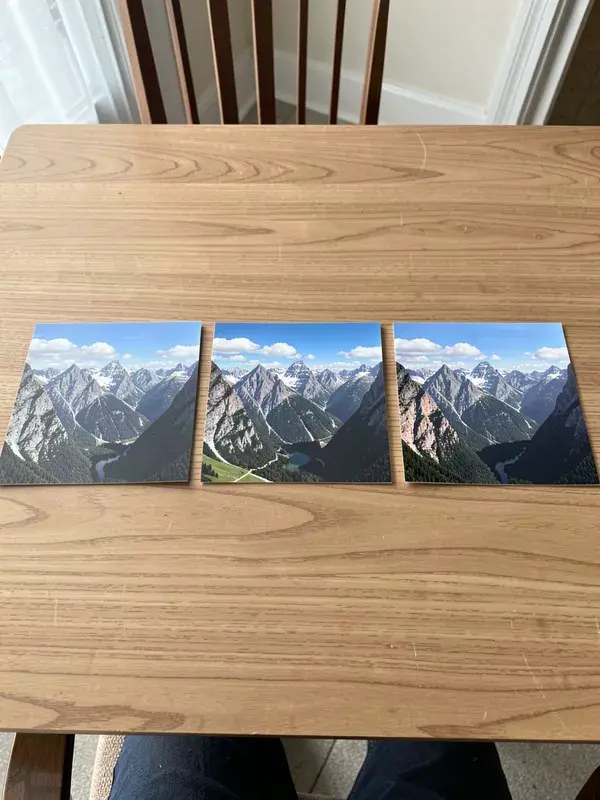
Resize one image to every platform size at once. Feed, story, thumbnail, banner, profile.
- 1
Drop in an image, or click to browse. Anything the browser can decode works.
- 2
Tick the platform presets you need. Feed post, story, thumbnail, banner, profile.
- 3
Choose fit, which letterboxes into the frame, or fill, which crops to cover it.
- 4
Download the sizes individually, or all of them at once.
- Presets
- 7 platforms
- Output
- PNG, JPG or WEBP
- Account
- Not required
What is social media image resizer?
A social media image resizer converts one image into the exact pixel dimensions each platform expects, so nothing is cropped or upscaled by the platform itself. APImage's resizer runs entirely in the browser on the Canvas API: pick the presets you need, choose whether to fit or fill the frame, and download each size. The image is never uploaded to a server and no account is required.
Is my image uploaded anywhere?
No. The file is read by the browser, drawn to a canvas, and re-encoded locally. Nothing is sent to APImage or to any other server, which is also why the tool works with the network tab open and no requests firing.
What is the difference between fit and fill?
Fit scales the whole image inside the target frame and pads whatever is left over, so nothing is lost but you get bars. Fill scales the image to cover the frame and crops the overflow, so the frame is full but the edges are cut. Use fill for feed posts and fit when the whole composition matters.
Will resizing make my image blurry?
Scaling down is lossless in practice. Scaling up is not: a 600px image stretched to a 1920px banner will look soft no matter which tool does it. Start from the largest original you have, and use the AI upscaler if the original is genuinely too small.
Which format should I export?
PNG for anything with text or a transparent background, JPG for photographs where file size matters, WEBP when you want both and the destination supports it. Every major social platform accepts all three.